How to Set Up Gosund Smart Socket: A Step-by-Step Guide
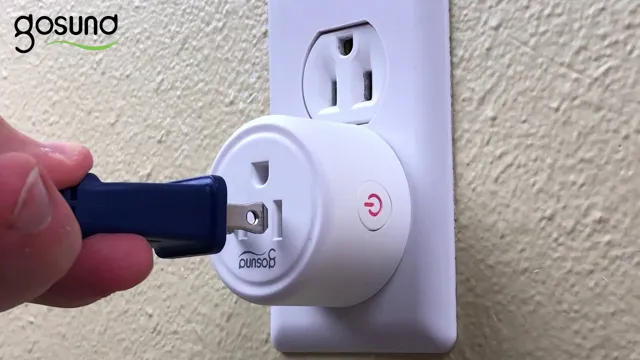
If you’re looking to jump on the smart socket bandwagon, then you’ve come to the right place. We all love the convenience of having control over our appliances with just a tap on our phones. Whether you’re interested in setting up a smart socket for the first time or you’re already familiar with the process, this guide will help you set up your Gosund Smart Socket in no time.
From downloading the app to configuring your device, we’ve got you covered. So, let’s get started and turn your regular old power socket into a smart one.
What You Will Need
Are you looking for a way to make your home smarter? Setting up a Gosund Smart Socket is a great place to start. To get started, you will first need to make sure you have a stable Wi-Fi connection and a smartphone or tablet. Once you have both, download the Gosund app from either the App Store or Google Play Store.
After creating an account, plug in your Gosund Smart Socket and hold the button down on the device until it enters pairing mode. From the app, scan for the device and connect it to your Wi-Fi network. Finally, you can customize your settings, including setting schedules for when the outlet turns on and off.
And that’s it! With just a few simple steps, you can have a fully functioning Gosund Smart Socket, adding convenience and automation to your daily routines.
Step 1: Download the Gosund App
To get started with your Gosund smart devices, the first step is to download the Gosund App. This app is essential for setting up and controlling your devices, so make sure to have it downloaded and installed before proceeding. However, before you can install the app, you will need a few things.
First, you will need a smartphone or tablet running on either IOS or Android operating system. Secondly, you will need a stable internet connection to download and install the app. It’s also important to note that the Gosund App is completely free, so you don’t have to worry about paying for any subscriptions or in-app purchases.
With these things in hand, you’re ready to move on to the next step and start setting up your Gosund devices!

Step 2: Plug in the Gosund Socket
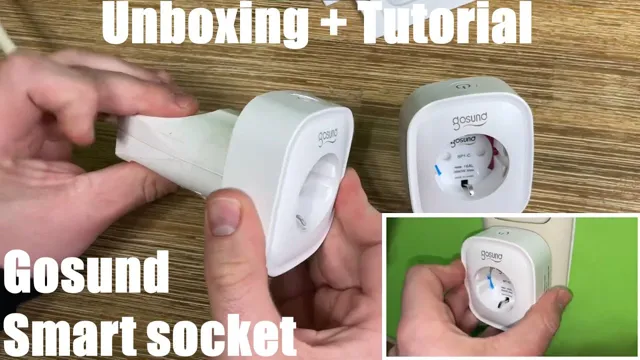
To plug in the Gosund Socket, the first thing you need is obviously the Gosund Socket itself. You will also need a device with a Wi-Fi connection that has the Gosund App installed on it. Usually, people use their smartphones for this purpose.
It’s important to note that the Gosund Socket only works with a 4G Wi-Fi network, not with a 5G network. If your smartphone is not connected to a
4G network, you will need to change the network settings before proceeding. Once you have the Gosund Socket and a compatible device, you can plug in the socket to an electrical outlet. Make sure the socket is within the range of your Wi-Fi router.
The socket will start flashing, indicating that it’s in pairing mode. Open the Gosund App on your smartphone, and follow the on-screen instructions to pair the socket with your device. Once the pairing is complete, you can use the app to control the socket remotely, turning your appliances on and off with just a few taps on your device.
Overall, the process is simple and straightforward, and with just a few steps, you can start making your home smarter and more convenient to control.
Step 3: Add the Gosund Socket to the App
Before you can start using your Gosund smart socket, you need to add it to the app first. To do this, make sure that your smartphone or tablet is connected to the same Wi-Fi network that your socket is connected to. Open the Gosund app and tap the “+” button on the top right corner of the app’s home screen.
Choose “Socket” from the device options and follow the on-screen instructions to proceed. The app will prompt you to input your Wi-Fi network name and password to connect the socket to your home network. Once the connection is established, give your socket a name and choose an icon to easily identify it later.
This will be handy especially if you have multiple sockets in the house. You can now control your Gosund socket using the app, voice commands (if you have connected it to a home assistant), or manual control by pressing the power button on the socket itself. With the Gosund smart socket, you can finally say goodbye to traditional plugs and switches that require physical manipulation and enjoy convenient and remote-controlled power controls!
Step 4: Connect to Wi-Fi
To connect to Wi-Fi, you will need a few things. First and foremost, you will need a device that is capable of connecting to a wireless network, such as a laptop, smartphone, or tablet. You will also need a Wi-Fi network that you have access to, either through your own router or a public hotspot.
Once you have both of these things, the next step is to make sure your Wi-Fi is turned on. Depending on your device, this could involve opening up your settings and selecting the Wi-Fi option, or simply tapping on the Wi-Fi icon in your status bar. Once your Wi-Fi is turned on, you should see a list of available networks in your area.
If you’re at home, your router’s network should appear on this list. Simply tap on the network you want to connect to, enter the password if necessary, and you should be good to go! If you’re connecting to a public Wi-Fi hotspot, the process may be a bit more complicated. Some networks require you to enter personal information or agree to terms and conditions before you can connect.
Make sure to read any prompts carefully before proceeding. Overall, connecting to Wi-Fi is a relatively straightforward process as long as you have the necessary equipment and know how to navigate your device’s settings. Just remember to choose a secure network whenever possible, and to be cautious when connecting to public Wi-Fi hotspots.
Using Your Gosund Smart Socket
If you’re new to the world of smart home technology, you may be wondering how to set up your Gosund smart socket. Luckily, it’s a relatively simple process that can be done with just a few steps. First, plug in your smart socket and download the Gosund app to your smartphone.
Next, create an account within the app and select “add device” to start the pairing process. Follow the prompts to connect your smart socket to your home’s wireless network, and then give it a unique name within the app. Once you’ve completed these steps, you can begin controlling your devices through the app, setting schedules, and even adjusting the brightness or color of your connected lights with just a few taps on your smartphone.
Overall, the Gosund smart socket is a versatile and useful tool for anyone looking to upgrade their home’s technology.
Step 1: Name the Device in the App
When setting up your Gosund smart socket, the first step is to name the device in the app. This may seem like a small task, but it’s crucial in ensuring proper communication with other smart devices and the app itself. Giving your device a unique name not only helps with organization, but also with ease of use.
For example, if you have multiple smart sockets throughout your home, naming them by location or the device they are connected to (e.g., Bedroom Lamp, Living Room TV) makes it easier to control them with voice commands or through the app.
Additionally, when naming your device, keep in mind that the name should be easy to remember and pronounce. This simple step sets the foundation for a seamless experience with your Gosund smart socket.
Step 2: Control Your Gosund Socket
To control your Gosund smart socket, the first step is to ensure it’s connected to your Wi-Fi network and properly set up with your chosen smart home assistant, be it Amazon Alexa or Google Home. Once set up, you can easily control the socket using voice commands or through your smart home assistant’s app on your phone. For example, if you want to turn off the lamp connected to your Gosund socket, you could simply say, “Hey [smart assistant], turn off the lamp.
” Alternatively, you could open the app and click on the socket icon to turn it on or off. You can also set schedules or timers using the app, allowing you to automate your devices to turn on and off at specific times. With just a few simple steps, you can easily control your Gosund smart socket and simplify your daily life.
Troubleshooting
Are you having trouble setting up your Gosund smart socket? Not to worry, setting up a smart socket isn’t as complicated as it may seem. Firstly, ensure that your smart socket is in close proximity to your preferred Wi-Fi network. Next, download the Gosund app and follow the on-screen instructions to complete the installation process.
The app will detect your device and prompt you to connect to it. Once connected, you can control your smart socket using the Gosund app or via voice commands through smart home assistants. If you encounter problems during the setup process, try resetting the device and your Wi-Fi network settings, and try again.
With these simple steps, you can enjoy the convenience of having control over your home devices from anywhere, at any time.
Resetting the Gosund Socket
If you’re having trouble with your Gosund socket, resetting it can be a quick and easy solution. Here’s how to do it: First, unplug the socket and wait a few seconds. Then, press and hold the power button on the socket for about 5 seconds.
You should see the light on the socket blink rapidly. That means it’s been reset. Now you can plug the socket back in and set it up again.
This should fix any issues you were having, like the socket not connecting to your Wi-Fi network or not responding to voice commands from your smart speaker. Make sure to try this before contacting customer support or buying a new socket.
Reconnecting Your Gosund Socket to Wi-Fi
If you’re experiencing issues with your Gosund socket connecting to Wi-Fi, there are a few troubleshooting solutions to try. Firstly, make sure that your phone or device is connected to a 4GHz network, as this is the frequency that Gosund devices connect to.
If you’re still not able to connect, try resetting the socket by holding down the button for five seconds, then releasing and holding down for another five seconds until the indicator light starts flashing rapidly. Another potential issue could be that your Wi-Fi network is too far away, in which case you may need to move the socket closer to your router. Finally, double-check your Wi-Fi password and network name to ensure that they are correct.
By following these steps, you should be able to reconnect your Gosund socket to your Wi-Fi network and start enjoying the convenience of smart home technology once again.
Conclusion
Congratulations! You now know how to set up your Gosund smart socket, making you the king or queen of the tech-savvy castle. So, whether you’re busy cooking up a storm or simply want to turn off the lights from the comfort of your bed, the Gosund smart socket has got your back. With its easy setup process and intuitive controls, you’ll wonder how you ever lived without it.
Plus, with the added bonus of saving energy and money, why not indulge in this smart home technology? So, go forth and power up your home with the magic of smart sockets!”
FAQs
What is a Gosund Smart Socket?
The Gosund Smart Socket is a Wi-Fi enabled socket that allows you to control your appliances remotely using a smartphone app.
How do I set up my Gosund Smart Socket?
To set up your Gosund Smart Socket, you need to download the Gosund app from the App Store or Google Play Store, connect the socket to your home Wi-Fi network, and follow the in-app instructions.
Can I control my Gosund Smart Socket using voice commands?
Yes, you can control your Gosund Smart Socket using voice commands through Amazon Alexa or Google Assistant.
What appliances can I control with the Gosund Smart Socket?
The Gosund Smart Socket can be used with a wide variety of appliances, including lamps, fans, kettles, and other small appliances.
Can I schedule my appliances to turn on and off automatically with the Gosund Smart Socket?
Yes, you can set schedules for your appliances to turn on and off automatically using the Gosund app.
Can I monitor my energy usage with the Gosund Smart Socket?
Yes, you can monitor your energy usage and track your energy consumption through the Gosund app.
How secure is the Gosund Smart Socket?
The Gosund Smart Socket uses 128-bit AES encryption to protect your data, and the app is regularly updated to ensure the highest level of security.