How to Set Up Socket Mobile Scanner: A Step-by-Step Guide for Seamless Integration
Do you find it hard to keep track of your inventory or sales transactions? Do you need an efficient and reliable scanning solution for your business? Look no further than the Socket Mobile Scanner!
This nifty device is packed with features that can help streamline your operations and improve your bottom line. But first, you need to know how to set it up properly. In this blog, we’ll show you step-by-step how to set up your Socket Mobile Scanner, so you can start scanning like a pro in no time!
Introduction
Setting up a Socket Mobile scanner may seem like a daunting task, but with the right guidance, it is a simple and straightforward process. To begin, ensure that your device is fully charged and ready for use. Download the Socket Mobile Companion App onto your device to enable connection with the scanner.
Pair your scanner with your device either by scanning the barcode provided or by utilizing Bluetooth pairing. Once paired, you can test the connection by inputting data through the scanner and verifying that it appears on your device. Adjust the settings in the Companion App to customize the scanner’s performance to your preferences.
With these steps, you’ll have your Socket Mobile scanner set up and ready for efficient barcode scanning in no time!
Overview of Socket Mobile Scanner
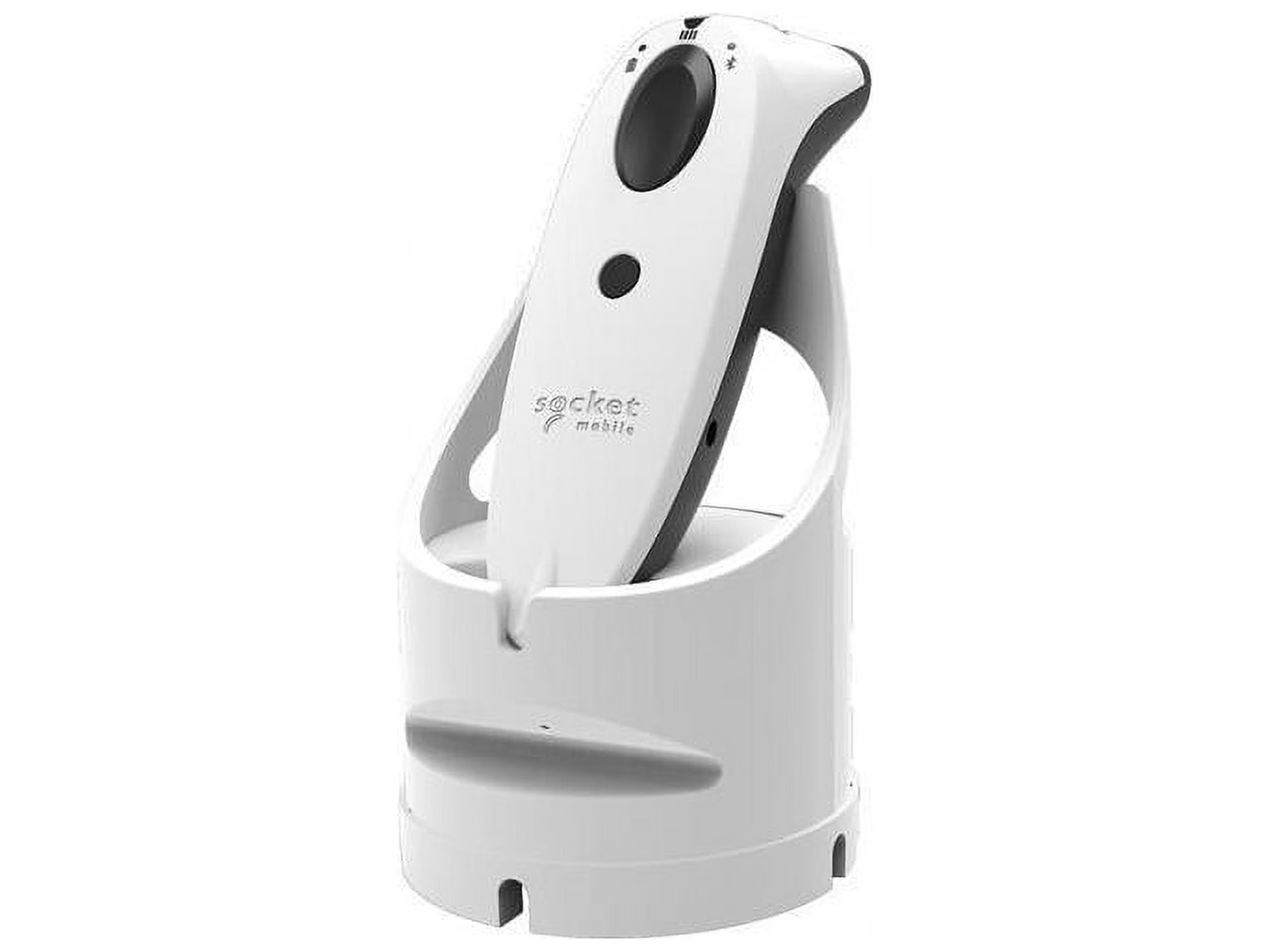
Socket Mobile Scanner is a powerful device that has been designed to help businesses in various industries streamline their operations. With this device, users can quickly and accurately scan barcodes, invoices, shipping labels, and other documents, making it an essential tool for businesses that deal with a large volume of paperwork. The scanner is easy to use, and it can connect with various devices, including smartphones, tablets, and laptops, via Bluetooth.
This makes it possible for users to scan documents on the go, without the need for any additional hardware or software. Overall, Socket Mobile Scanner is a reliable and efficient solution that can help businesses save time and money while improving their operational efficiency.
Benefits of Using the Socket Mobile Scanner
The Socket Mobile Scanner is a powerful tool that offers numerous benefits to those who use it. This portable scanner is becoming increasingly popular among businesses and individuals who need to scan documents quickly and efficiently. With its compact size and wireless capability, the Socket Mobile scanner is ideal for use in a variety of settings, from retail stores to healthcare facilities.

One of the many benefits of using this scanner is its ability to scan barcodes and QR codes with ease, making it an invaluable tool for businesses that need to scan items quickly and accurately. The scanner’s mobile app also allows users to view and organize their scan data, making it easy to keep track of inventory and other important information. Overall, the Socket Mobile scanner is a fantastic tool for anyone in need of a reliable and efficient scanning solution.
Setting Up Your Socket Mobile Scanner
If you’re looking to set up your Socket Mobile scanner, the first step is to make sure you have the necessary equipment. You will need the scanner itself, a charging cradle, and a USB charging cable. Once you have everything ready, start by connecting the charging cradle to a power source and placing the scanner in the cradle to charge.
While the scanner is charging, download and install the Socket Mobile Companion app on your device, available for both iOS and Android. Follow the prompts to connect your scanner to the app via Bluetooth, and you’re ready to start scanning. With the Socket Mobile scanner, you’ll be able to easily perform inventory management, track attendance, and quickly gather the data you need for your business.
Charge your Scanner
In order to set up your Socket Mobile Scanner, it’s important to make sure that it’s charged up and ready to go. Before you even begin the setup process, you should plug your scanner into a power source and let it charge up completely. This will ensure that you have enough juice to get through the entire setup process without any interruptions or hiccups.
Once your scanner is fully charged, you can begin the setup process by downloading the Socket Mobile Companion App on your smartphone or tablet. From there, you’ll be guided through the steps to connect your scanner to your device and get it up and running. By taking the time to properly charge up your scanner, you’ll be setting yourself up for success and ensuring that you have a smooth experience with your new device.
Connect to your Device via Bluetooth
If you’ve recently purchased a Socket Mobile scanner, the first thing you need to do is connect it to your device via Bluetooth. This will not only allow you to use the scanner wirelessly, but also ensure speedy and efficient scanning. To start, turn on your scanner and put it in discovery mode.
This can usually be done by pressing and holding the power button until the LED lights start to flash. Next, open the Bluetooth settings on your device and search for available devices. When you see “Socket” listed, select it and wait for the Bluetooth pairing to complete.
Once your device is connected to the scanner, you’re all set to start scanning barcodes. It’s important to note that some devices may require additional setup steps, such as downloading a specific app or configuring settings within your inventory management software. But with a little patience and research, you’ll be able to get your scanner up and running in no time.
Download Socket Mobile Scanner App
If you’ve recently purchased a Socket Mobile scanner, the first thing you need to do is download the Socket Mobile Scanner app. This app can be found on both the App Store and Google Play Store and is completely free of charge. Once you have downloaded the app, simply follow the instructions to connect your scanner to your mobile device via Bluetooth.
This process is quick and easy, and will enable you to start scanning items in no time! It’s important to note that the Scanner app is only compatible with Socket Mobile scanners, so be sure to double-check the model of your scanner before downloading. With the Socket Mobile Scanner app, you can easily manage your inventory, track sales, and streamline your business operations. Experience the convenience of mobile scanning technology by downloading the Socket Mobile Scanner app today!
Using Your Socket Mobile Scanner
If you’re looking for a reliable way to scan barcodes on the go, the Socket Mobile scanner might be just what you need. Setting it up is quick and easy, so you can start scanning in no time. First, make sure your device is fully charged and turned on.
Next, download the Socket Mobile Companion app from your app store. Open the app and follow the simple instructions to connect your scanner to your device via Bluetooth. Once connected, you’re ready to start scanning.
Whether you’re using it for retail, inventory, or any other purpose, the Socket Mobile scanner is a great tool for streamlining your work. With its compact size and easy-to-use design, you can take it with you wherever you go and scan with confidence. Try it out for yourself and see how quickly and efficiently you can get your work done.
Pairing the Scanner with the Socket Mobile App
Pairing your Socket Mobile scanner with the Socket Mobile app is incredibly simple. With just a few quick steps, you can begin using your scanner to its fullest potential. To get started, first, you will need to open the socket mobile app on your mobile device.
Once the app is open, you will select the “Pair Scanner” option, which will prompt you to enable Bluetooth on your device. After enabling Bluetooth, you will need to turn on your scanner and put it into pairing mode by holding down the power button until the scanner’s light begins flashing. Finally, select the scanner from the available Bluetooth devices, and you are ready to go! With the scanner paired with the app, you can now quickly and easily scan barcodes or QR codes, and the app will instantly store the information.
Whether you are using it for inventory management, retail sales, or any other application, pairing your Socket Mobile scanner with the app will undoubtedly make your job easier and more efficient. So why wait? Grab your scanner and start scanning today!
Scanning with your Socket Mobile Scanner
Using your Socket Mobile Scanner can greatly improve your scanning capabilities, making it faster and more efficient. Before you start scanning, make sure to download the SocketScan app on your device, and connect your scanner via Bluetooth. Once connected, you can begin scanning items by simply pressing the button on your scanner, and the app will automatically detect the barcode and input the data into the designated field.
The Socket Mobile Scanner also has the ability to scan multiple barcodes at once, making it a useful tool for inventory management and data collection. With its compact size and ease of use, the Socket Mobile Scanner is a great investment for any business looking to improve its scanning capabilities.
Troubleshooting
Setting up a Socket Mobile scanner might seem daunting, but it’s actually a straightforward process. Start by downloading the SocketScan 10 software from the Socket Mobile website and then connect the scanner to your computer using either Bluetooth or USB. The software will guide you through the rest of the setup process, including configuring the scanner settings, enabling the barcode types you want to scan, and testing the scanner to make sure everything is working correctly.
Don’t forget to charge the scanner beforehand to ensure it has enough power to get you through the setup and testing process. With a little patience and attention to detail, you’ll be up and running with your Socket Mobile scanner in no time, making your business operations more efficient and effective.
Problems with Bluetooth Connection
If you’re having problems with your Bluetooth connection, don’t worry, you’re not alone. Bluetooth technology is great when it works, but it can be frustrating when it doesn’t. Thankfully, there are some simple troubleshooting steps you can take to get your Bluetooth devices connected again.
First, make sure that both devices have their Bluetooth settings turned on and are in range of each other. If that doesn’t work, try restarting both devices and attempting to connect again. If the issue still persists, remove the devices from each other’s Bluetooth device list and try pairing them again from scratch.
Another solution is to check for any software updates that may be available for your devices or reset the Bluetooth settings to their default state. By following these steps, you should be able to resolve most Bluetooth connection issues.
Scanner Not Scanning
If your scanner suddenly stops scanning, don’t panic! There are several reasons why this issue could be happening, and they’re all relatively simple to diagnose and fix. First and foremost, check your connections. Ensure that your scanner is plugged in and that the cable is firmly attached.
It’s surprising how often loose cables can cause problems. If that doesn’t seem to be the issue, check your drivers. Make sure that your scanner’s driver is up to date.
If it isn’t, update it immediately. Another possible cause could be a dirty scanner glass. If there is dirt or smudges on the glass, the scanner will not be able to read the image correctly.
Finally, check the settings on your scanner software. Make sure that you have selected the right options and made the necessary adjustments. With these simple steps, you should be able to solve the issue and get your scanner up and running again in no time.
Conclusion
Now that you have successfully navigated the sometimes frustrating landscape of technology, you are ready to unleash the power of the Socket Mobile Scanner. With its lightning-fast scanning capabilities and easy-to-use system, your business is sure to thrive. So go forth and conquer the world of inventory management, one scan at a time! And remember, if all else fails, just unplug it and plug it back in.
Classic tech support move. Cheers to all the aspiring technophiles out there!”
FAQs
What is a socket mobile scanner?
A socket mobile scanner is a handheld device that helps to scan barcodes and track inventory.
What are the advantages of using a socket mobile scanner?
The advantages of using a socket mobile scanner include improved accuracy, increased efficiency, and reduced costs.
How do I set up my socket mobile scanner?
To set up a socket mobile scanner, first, download the SocketScan app. Then, pair the scanner with your device and start scanning.
What devices are compatible with socket mobile scanners?
Socket mobile scanners are compatible with iOS, Android, Windows, and Mac devices.
How do I charge my socket mobile scanner?
You can charge your socket mobile scanner using the included USB cable and a power source.
What types of barcodes can a socket mobile scanner scan?
Socket mobile scanners can scan various types of barcodes, including 1D, 2D, and QR codes.
How do I troubleshoot any issues with my socket mobile scanner?
If you encounter any issues with your socket mobile scanner, you can refer to the user manual, contact customer support, or try resetting the device.